
WooCommerce has no CC or BCC setting for order emails. Add them with the woocommerce_email_headers filter: append a 'Cc: address' or 'Bcc: address' line, optionally only for one email ID (such as customer_completed_order) or when the order contains a given product. Without code, GoUp Conditional Email CC/BCC does the same through rules by product, category, email type and order status.
Key takeaways
- WooCommerce has no CC or BCC setting: admin emails have a Recipient(s) field, customer emails have none.
- The woocommerce_email_headers filter can append Cc: and Bcc: headers to any WooCommerce email, keyed on the email ID such as customer_completed_order.
- Always check that $order is a WC_Order and never build a header from user input, or you open the door to header injection.
- CC/BCC is for oversight copies. If a warehouse or supplier should get the email instead of you, or see only their own items, use recipient routing or a supplier email.
Every WooCommerce store eventually needs a copy of an email to go somewhere else: accounting wants the completed-order email, a supplier wants to know when their products sell, the shop-floor manager wants the processing email for wholesale orders. WooCommerce's email settings give you a single Recipient(s) field on admin emails and nothing at all on customer emails — no CC, no BCC, no conditions. This guide shows how to add CC and BCC recipients to WooCommerce order emails, first with the woocommerce_email_headers filter and then with a rules plugin that makes it conditional on products, categories, email type and order status.
Where WooCommerce lets you add recipients (and where it does not)
- Admin emails (New order, Cancelled order, Failed order): WooCommerce → Settings → Emails → Manage has a Recipient(s) field. Comma-separated addresses all become visible To recipients. No conditions.
- Customer emails (Processing order, Completed order, Refunded, Invoice, Note): no recipient field. The customer is the recipient and that is that.
Neither supports CC, BCC, or "only when the order contains X". For that you need the headers filter.
Option 1: Add CC or BCC with the woocommerce_email_headers snippet
woocommerce_email_headers receives the raw header string, the email ID and the order. Appending Cc: or Bcc: lines is all it takes.
add_filter( 'woocommerce_email_headers', function ( $headers, $email_id, $order ) {
    // 1. BCC accounting on every completed-order email.
    if ( 'customer_completed_order' === $email_id ) {
        $headers .= "Bcc: accounts@example.com\r\n";
    }

    // 2. CC a supplier when the new-order email contains their category.
    if ( 'new_order' === $email_id && $order instanceof WC_Order ) {
        foreach ( $order->get_items() as $item ) {
            if ( has_term( 'garden-furniture', 'product_cat', $item->get_product_id() ) ) {
                $headers .= "Cc: orders@gardensupplier.example\r\n";
                break;
            }
        }
    }

    return $headers;
}, 10, 3 );
Email IDs you will use: new_order, cancelled_order, failed_order, customer_on_hold_order, customer_processing_order, customer_completed_order, customer_refunded_order, customer_invoice, customer_note. Third-party plugins register their own IDs; print $email_id to the log to find them.
Two safety notes. Never build a header from user input — a newline in a value becomes a new header (header injection). And check that $order is a WC_Order, because some emails (new account, password reset) pass a user object instead.
The snippet's weak points
- Conditions and addresses are buried in PHP. The accountant changes email address and the developer gets a ticket.
- Duplicate headers are easy to create when two snippets touch the same email.
- No visibility of what is copied where, which matters under GDPR when someone asks who received an order email.
Option 2: Conditional CC and BCC without code
GoUp Conditional Email CC/BCC adds a rules screen under WooCommerce → Conditional Email CC/BCC. It never replaces the primary recipient — it only adds CC and BCC headers, with de-duplication and header-injection protection built in.
- Rules → Add rule, give it a name, leave Enabled on.
- Conditions: pick products (including variations) and/or categories. Tick Include child categories to match sub-categories.
- Match logic: ANY (one selected item in the order is enough), ALL (every selected condition must be present) or ALL ORDERS (ignore products and apply to every order for the selected email types — this is the "BCC accounting on everything" setting).
- Email types: any WooCommerce email, including ones added by other plugins. Customer account emails are excluded on purpose.
- Order status (optional): only apply when the order is in this status at send time.
- CC and BCC address lists (comma- or line-separated). Addresses already present as the primary recipient or in an existing header are skipped; an address in both CC and BCC is sent as BCC.
- Priority sets evaluation order; all matching rules contribute recipients. Save.
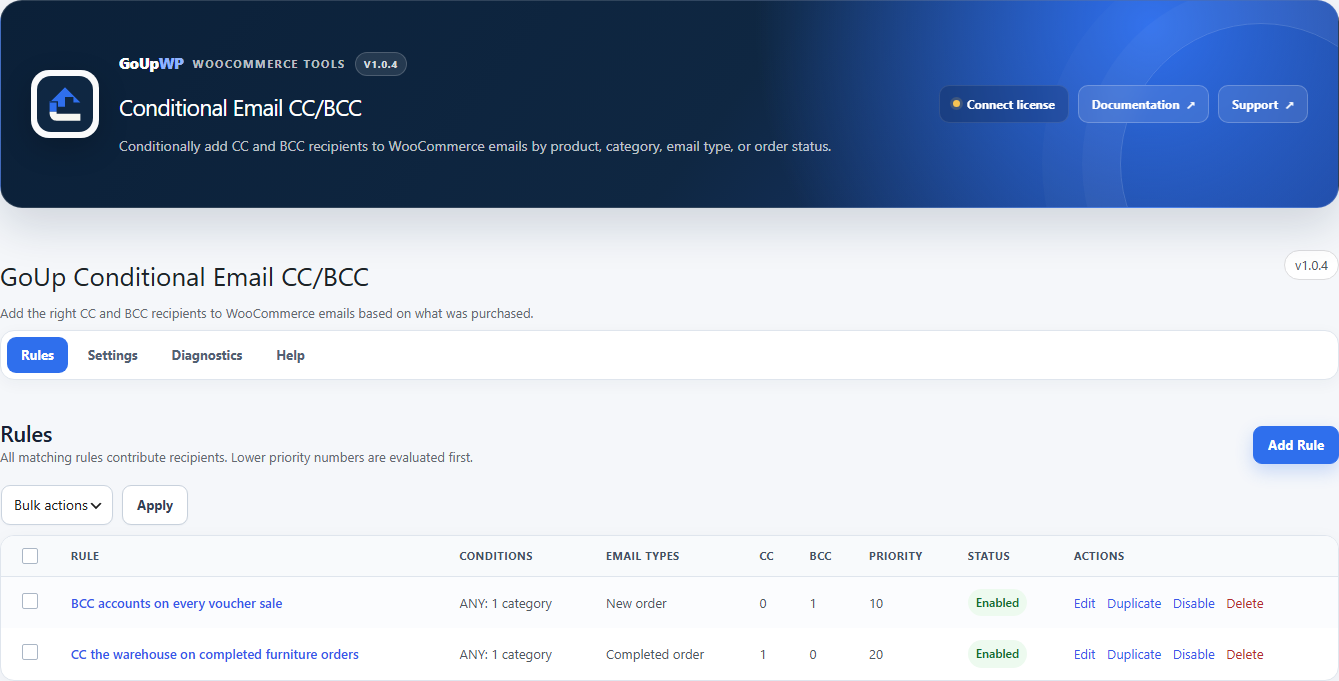
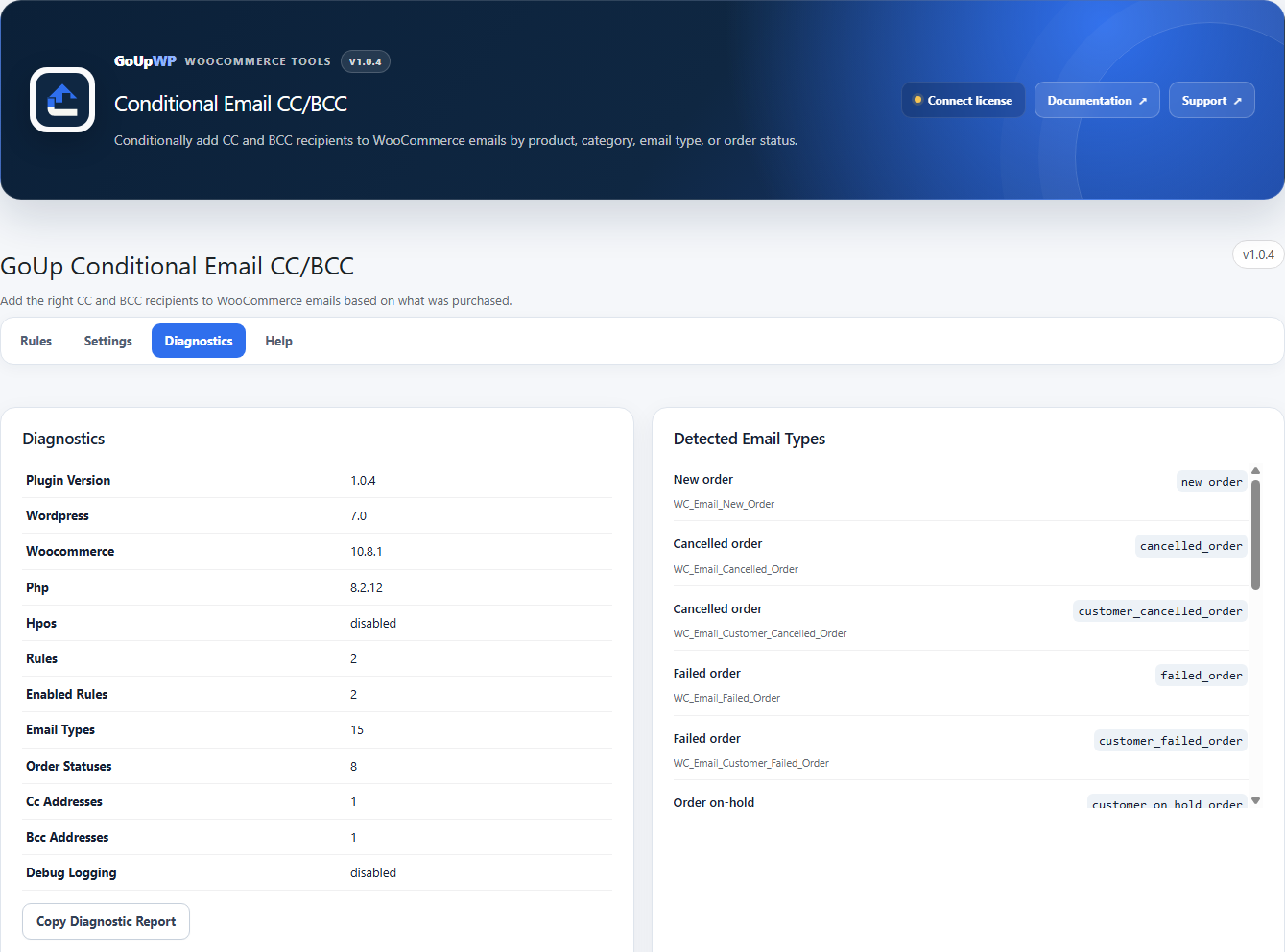
Before relying on a rule, open Diagnostics and test a real order against it: the plugin shows which rules matched and which addresses would be added, without sending anything.
Rules can be duplicated, bulk enabled/disabled, and exported or imported as JSON to move a configuration between staging and production. The plugin works with the classic checkout, the Checkout Block and HPOS, and the original email template and sending workflow are untouched.
Price: $12 per year for one production site plus one staging site, or $49 lifetime. Documentation · Pricing.
Rules most stores set up first
| Need | Rule |
|---|---|
| Accounting copied on completed orders | ALL ORDERS → Completed order → BCC accounts@ |
| Supplier notified when their products sell | Category: Garden furniture → New order → CC supplier@ |
| Wholesale manager sees wholesale processing emails | Category: Wholesale (children) → Processing order → CC wholesale@ |
| Owner silently copied on refunds | ALL ORDERS → Refunded order → BCC owner@ |
| Fulfilment copied only once the order is paid | Product: any → New order → Order status: Processing → CC warehouse@ |
CC/BCC vs changing the recipient vs a separate supplier email
- CC/BCC (this guide): the same email, more people. Best for oversight and accounting.
- Change or add the To recipient by product: the email is routed to a department or warehouse. See Send WooCommerce order emails to different addresses by product.
- Separate supplier email with only their items: for dropshipping, where suppliers must not see each other's products or the customer's payment details. See Automatically email suppliers their part of an order.
Troubleshooting
The CC does not arrive. Check the SMTP plugin's log — many transactional services list CC/BCC recipients separately. Also confirm the email type is actually enabled under WooCommerce → Settings → Emails.
Recipients appear twice. Two snippets, or a snippet plus a plugin, are adding the same address. GoUp de-duplicates against existing headers; snippets do not.
The same address is in CC and BCC. A hand-written snippet will add both headers. GoUp keeps the address once, as BCC, so it stays hidden from the other recipients.
A customer account email was not copied. New account and password reset emails carry no order, so rules based on products cannot match them. GoUp excludes these customer account emails on purpose.
Keeping CC and BCC lists tidy over time
Copy lists grow: an accountant leaves, a supplier changes address, a manager wants "just the wholesale ones". With a snippet, every one of those is a code change on a live store. With rules in the admin, the operations lead edits the address, disables the rule for a month, or duplicates it for a second supplier — and can export the whole set as JSON before a redesign so nothing is lost when the theme's functions.php is replaced. Review the list quarterly: every extra recipient of an order email is a data recipient under GDPR, and the rules screen makes that review a two-minute job instead of an archaeology project.
Summary
WooCommerce has no CC or BCC setting for order emails. For one fixed copy — accounting on every completed order — a five-line woocommerce_email_headers filter is enough. Once copies depend on products, categories or order status, or someone other than a developer has to maintain them, a rules screen with de-duplication, injection protection, a diagnostics test and JSON export is the safer home for that logic.
Frequently asked questions
How do I BCC myself on every WooCommerce customer email?
In code, return $headers . "Bcc: you@example.com\r\n" from a woocommerce_email_headers filter with no conditions. In GoUp Conditional Email CC/BCC, create a rule with Match logic = ALL ORDERS, select the customer email types, and enter your address under BCC.
Can I CC a supplier only when their products are in the order?
Yes. Create a rule with Conditions = the supplier's products or category, Email types = New order or Processing order, and the supplier's address under CC. The supplier is copied on the full order email. If they should receive only their own line items, use GoUp Supplier Order Notifications instead.
What is the difference between adding a recipient and adding a CC?
The Recipient field on admin emails (New order, Cancelled, Failed) accepts comma-separated addresses and every address is a visible To. CC is visible to all recipients; BCC is hidden. Customer emails have no recipient field at all, so CC/BCC is the only way to copy someone on them.
Do CC and BCC headers work with SMTP plugins and transactional email services?
Yes. Headers pass through wp_mail to WP Mail SMTP, Postmark, SendGrid and similar. Some services enforce a maximum recipient count; GoUp de-duplicates addresses so the same person is never listed twice.
Is there a security risk in adding email headers?
Only if user input reaches the header. GoUp validates every address and strips newline characters to prevent header injection; if you write your own snippet, never build headers from $_POST or order fields.