
To send WooCommerce local pickup order emails to the right store, hook woocommerce_email_recipient_new_order, read the order's shipping line (local_pickup:7 for classic pickup, or the pickup_location meta for Checkout Block pickup), and add that branch's address to the recipients. Without code, GoUp Pickup Location Email Router maps each detected location to its branch inbox and falls back safely when a mapping is missing.
Key takeaways
- WooCommerce sends every New order email to the same inbox, whichever pickup location the customer chose.
- Classic Local Pickup stores the choice as a shipping line such as local_pickup:7; Checkout Block pickup uses the pickup_location method with the location name in the line's pickup_location meta.
- Filter woocommerce_email_recipient_new_order, read $order->get_shipping_methods(), and map the pickup to a branch address.
- Always fall back to the original recipient when no branch matches, so a renamed or re-created location never silences an order.
Click-and-collect is only useful if the right shop knows an order is coming. WooCommerce supports pickup — classic Local Pickup shipping methods in each zone, and native pickup locations in the Checkout Block — but every New Order email still goes to the single address under WooCommerce → Settings → Emails. The branch in Manchester never finds out about an order unless head office forwards it. This guide shows how to send WooCommerce local pickup order emails to the right store location, with a recipient-filter snippet and with GoUp Pickup Location Email Router.
How WooCommerce records the pickup location on an order
- Classic Local Pickup: each pickup option is a shipping method instance in a zone, stored on the order's shipping line as
local_pickup:7(method type + instance ID). The instance's title is the shop name you gave it. - Checkout Block pickup locations: WooCommerce → Settings → Shipping → Local pickup lets you define named locations with addresses. The order's shipping line uses the
pickup_locationmethod and stores which location was chosen. - Third-party pickup plugins: most store the chosen location in an order meta key.
Whichever the source, the email recipient filter can read it.
Option 1: Route the New Order email by pickup location with a snippet
This example maps two classic Local Pickup instances to branch inboxes and adds them to the default recipient.
add_filter( 'woocommerce_email_recipient_new_order', function ( $recipient, $order ) {
    if ( ! $order instanceof WC_Order ) {
        return $recipient;
    }

    $branches = array(
        'local_pickup:7'  => 'manchester@example.com',
        'local_pickup:12' => 'leeds@example.com',
    );

    foreach ( $order->get_shipping_methods() as $shipping ) {
        $key = $shipping->get_method_id() . ':' . $shipping->get_instance_id();
        if ( isset( $branches[ $key ] ) ) {
            return $recipient . ',' . $branches[ $key ]; // or return $branches[ $key ] to replace
        }
    }

    return $recipient;
}, 10, 2 );
For Checkout Block pickup locations, get_method_id() returns pickup_location and the chosen location's name is stored in the shipping line's pickup_location meta (read it with $shipping->get_meta( 'pickup_location' )), so key the array on that name instead — and update it if you rename the location. Repeat the filter for cancelled_order and failed_order if branches should hear about those.
Why this gets painful
- Instance IDs change when a shipping method is deleted and re-created; the snippet keeps pointing at the old ID and the branch goes quiet.
- The Checkout Block stores locations differently from classic pickup, so most snippets only cover one.
- Orders with items from more than one pickup location need multiple recipients — rarely handled.
- If a mapping is wrong there is no fallback: the email goes to nobody.
Option 2: Route pickup order emails without code
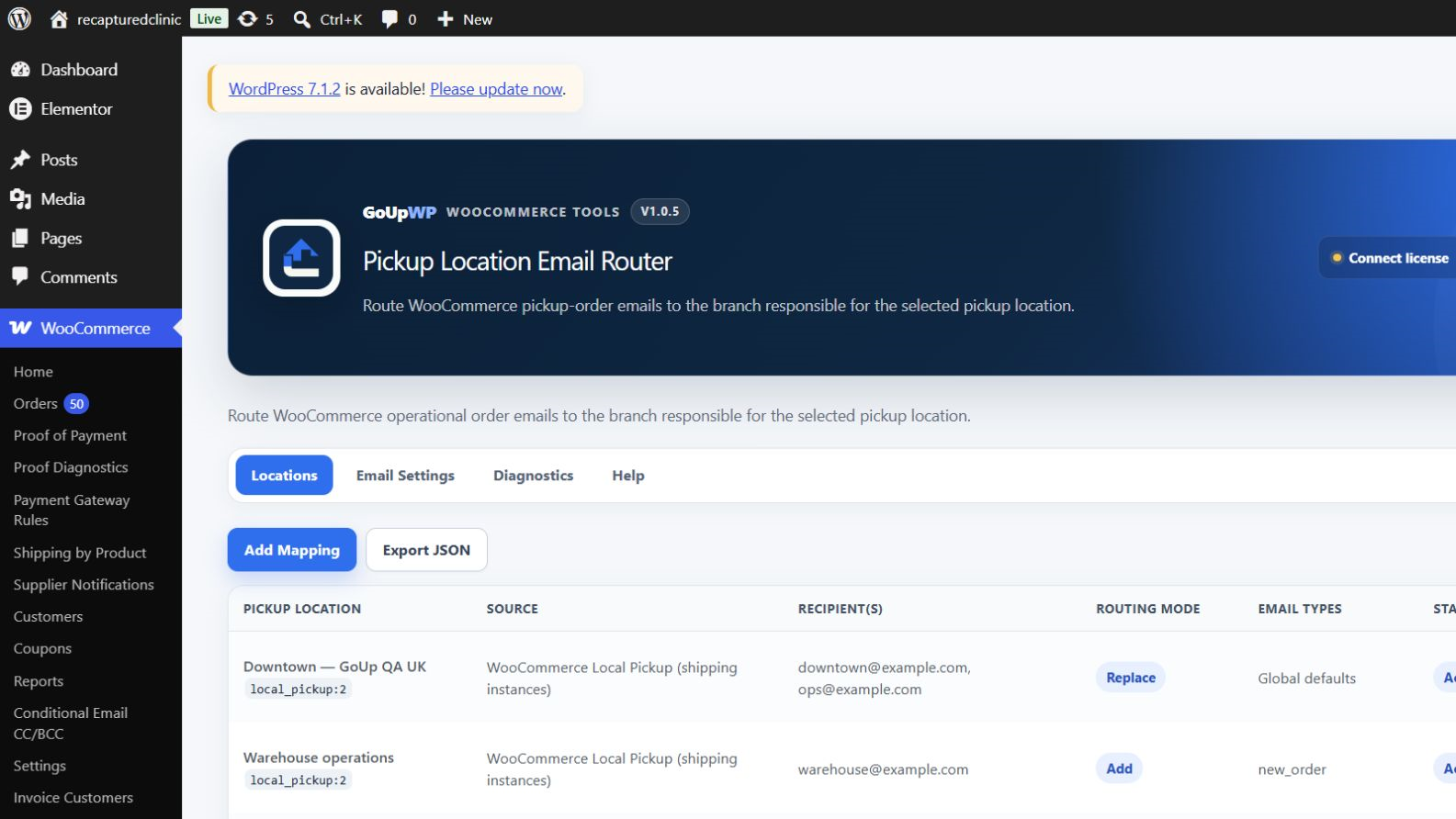
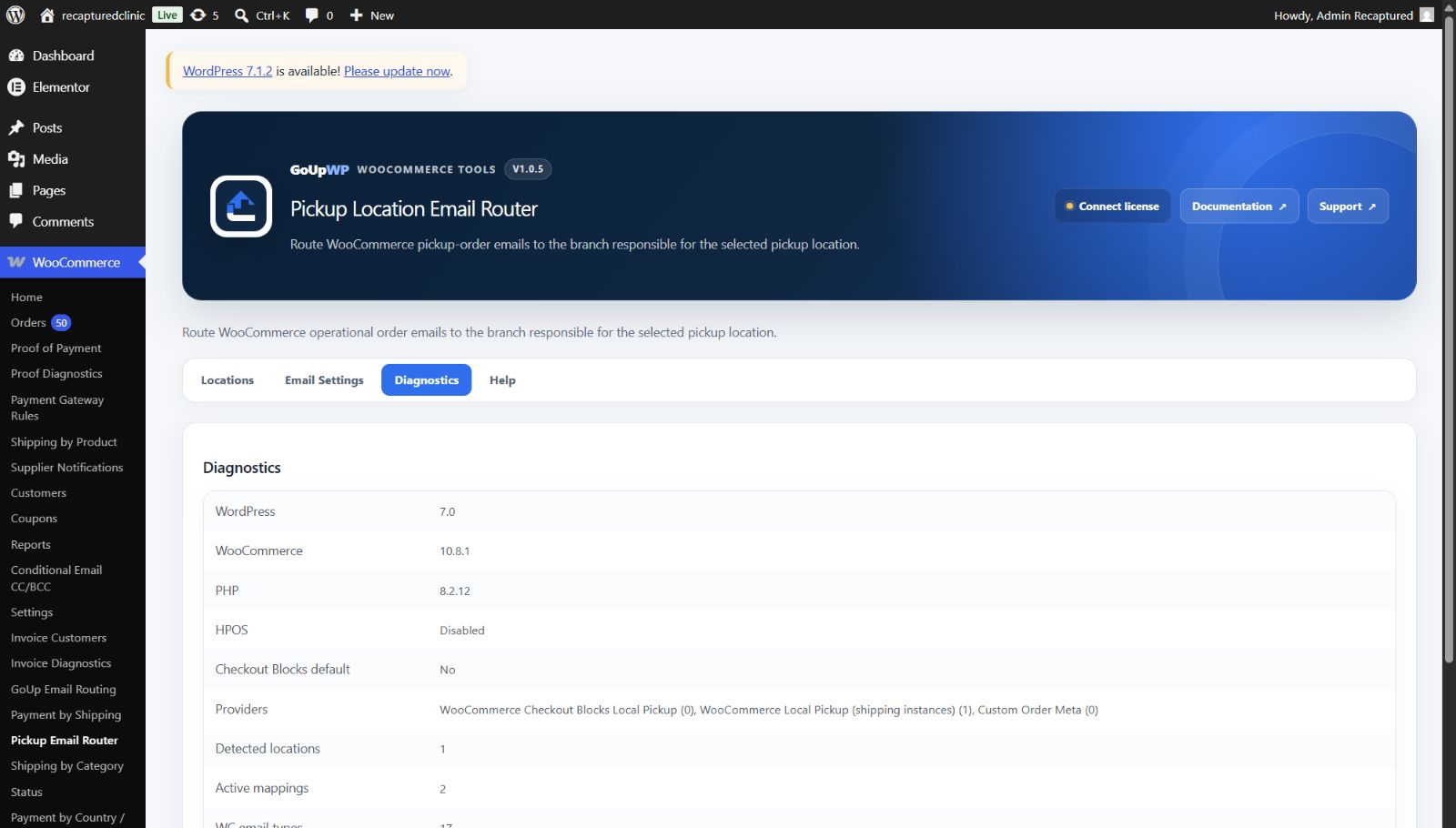
GoUp Pickup Location Email Router puts the mapping under WooCommerce → Pickup Email Router:
- Mappings → Add mapping: choose the provider and location — detected from your shipping zones and the Checkout Block's pickup locations — enter the branch recipients, and choose Add (branch plus original recipient) or Replace (branch only). Leave Use global email types on, or pick the email types for this mapping.
- Settings: the global email types to route (New order, Cancelled order and Failed order by default), whether to always keep the original recipient when replacing, whether customer emails may be routed (off by default), and an optional custom order meta key for pickup values written by third-party pickup plugins.
When a routed email is generated, the plugin reads the order's shipping lines, resolves the pickup location — Checkout Block locations get a stable identity captured at checkout, so renaming a location later does not break routing — and applies the matching mappings by priority. Multiple recipients and orders containing more than one pickup location are handled. If a location is detected but nothing maps it, or a mapping has no valid address, the email falls back to its original recipients and a warning is logged: no email is ever lost.
It does not send a duplicate email; it changes the recipient list of WooCommerce's normal operational email through standard recipient filters. Works with the classic checkout, the Checkout Block and HPOS. Mappings export and import as JSON.
Price: $12 per year for one production site plus one staging site, or $49 lifetime. Documentation · Pricing.
Typical multi-location setups
| Business | Mapping |
|---|---|
| Three-shop retailer, head office sees everything | Each location → branch@ → Add |
| Franchise, branches own their orders | Each location → branch@ → Replace, keep original recipient off |
| Bakery with two counters | Counter A → a@; Counter B → b@; Cancelled orders routed too |
| Pharmacy chain using a third-party pickup plugin | Custom order meta key set in Settings; each value → branch@ |
Pickup routing vs the alternatives
- Local Pickup Plus and multi-location suites bundle appointment slots, pickup statuses and location managers. If you need those, they are the right tool; if you only need the email to reach the right branch, that is a lot of plugin to run and pay for.
- Product-based routing (guide) routes by what was bought, not where it is collected. Use both together when branches stock different ranges.
- CC/BCC rules (guide) copy someone on every email; they cannot pick a recipient per location.
Troubleshooting
The branch did not get the email. Check the log for a "no mapping" warning — the location may have been re-created with a new instance ID. Re-select it in the mapping.
Head office stopped receiving orders. A mapping is set to Replace with always keep the original recipient off. Switch to Add or enable the setting.
Customer got the branch's internal email. Customer emails are excluded by default; if you enabled routing them, check which email types the mapping covers.
Related guides
- Hide payment methods based on the shipping method (e.g. no Cash on Delivery for pickup)
- Send order emails to different addresses by product
- Add CC and BCC to WooCommerce order emails
- All WooCommerce email plugins
Summary
To send WooCommerce local pickup order emails to the right store, filter woocommerce_email_recipient_new_order and map the order's pickup instance or Checkout Block location to a branch address. Whatever you use, make sure an unmapped location falls back to head office rather than to nobody, and re-check the mapping whenever a pickup method is re-created or a location renamed. That is the difference between click-and-collect that works and a branch that never hears about its orders.
Frequently asked questions
Can each pickup location get its own New Order email in WooCommerce?
Yes. Map each Local Pickup instance or Checkout Block pickup location to one or more branch addresses in GoUp Pickup Location Email Router, choosing Add (branch plus head office) or Replace (branch only). In code, compare the order's shipping method instance ID to a lookup table of branch emails.
Does this work with the Checkout Block's built-in pickup locations?
Yes. The block's pickup locations are detected automatically and each gets a stable identity captured at checkout, so renaming a location later does not break routing. Classic Local Pickup instances in shipping zones are supported too.
What happens if a pickup location has no mapping?
The email falls back to its original recipients and a warning is logged. No email is ever lost — the router fails safe rather than silently dropping a notification.
Will customers' emails be redirected to the branch?
Not by default. Only operational emails (New order, Cancelled order, Failed order) are routed. Customer-facing emails are excluded unless you explicitly enable routing them in Settings.
Does it send a duplicate email?
No. It changes the recipient list of WooCommerce's normal operational email through the standard recipient filters rather than sending a second message, so there is nothing extra to template or maintain.