
WooCommerce cannot email suppliers by itself. To automatically send each supplier their part of an order, either write a woocommerce_order_status_processing action that groups items by a supplier field and calls wp_mail per supplier, or install GoUp Supplier Order Notifications: define suppliers with email addresses, assign products, variations or categories to them, choose the order-status triggers, and each supplier receives a separate WooCommerce-styled email containing only their line items and only the customer details you allow.
Key takeaways
- WooCommerce cannot email suppliers on its own; adding a supplier as a New order recipient leaks other suppliers' items, your prices and customer data.
- Send one email per supplier containing only their line items, triggered on Processing (paid), not on New order.
- The New order email also fires for On hold orders, such as unpaid bank transfers, so it is the wrong trigger for shipping.
- Log every send and keep a resend option: when a supplier says 'we never got it', you need the delivery history.
Dropshipping and multi-supplier fulfilment run on one question: how does the supplier find out what to ship? Forwarding the admin email by hand does not scale, and simply adding the supplier as an extra recipient leaks every other supplier's products, your margins and the customer's phone number. This guide covers how to automatically email each supplier only their part of a WooCommerce order — with a code sketch for developers and, for everyone else, GoUp Supplier Order Notifications.
Why a plain "extra recipient" is wrong for suppliers
WooCommerce's New Order email is one message with the whole order. If you add supplier@ to the recipient list:
- Supplier A sees Supplier B's products and can work out who your other sources are.
- Everyone sees your retail prices and the payment method.
- The customer's email and phone go to a third party without a reason under GDPR.
- The New order email also fires when an order goes On hold — an unpaid bank transfer, for example — so suppliers can ship orders nobody has paid for.
A supplier email needs to be per supplier, filtered to their items, triggered by a paid status, and logged.
Option 1: A supplier notification with custom code
Here is a minimal sketch. It assumes each product has a _supplier_email meta field, groups the order's items by that value when the order reaches Processing, and sends one plain-text email per supplier with the shipping address and item list.
add_action( 'woocommerce_order_status_processing', function ( $order_id ) {
    $order = wc_get_order( $order_id );
    if ( ! $order ) {
        return;
    }
    $groups = array();

    foreach ( $order->get_items() as $item ) {
        $product  = $item->get_product(); // false if the product was deleted
        $supplier = get_post_meta( $item->get_product_id(), '_supplier_email', true );
        if ( $supplier && is_email( $supplier ) ) {
            $sku = $product ? $product->get_sku() : '';
            $groups[ $supplier ][] = sprintf( '%d × %s (SKU %s)', $item->get_quantity(), $item->get_name(), $sku ?: 'n/a' );
        }
    }

    foreach ( $groups as $email => $lines ) {
        if ( $order->get_meta( '_supplier_notified_' . md5( $email ) ) ) {
            continue; // already sent for this order
        }
        $body = "Order #{$order->get_order_number()} — please ship:\n\n" . implode( "\n", $lines )
              . "\n\nShip to:\n" . $order->get_formatted_shipping_address();
        wp_mail( $email, "Order #{$order->get_order_number()} for fulfilment", $body );
        $order->update_meta_data( '_supplier_notified_' . md5( $email ), current_time( 'mysql' ) );
    }
    $order->save();
} );
What this sketch still lacks, and what you would have to build next: variation- and category-level assignments with precedence, a supplier admin screen, HTML templates matching your other emails, a resend button, a failure log, Reply-To handling, hiding item meta you do not want shared, and protection against Checkout Block draft orders firing the hook early. That is several days of work and it has to be maintained across WooCommerce releases.
Option 2: Supplier order notifications without code
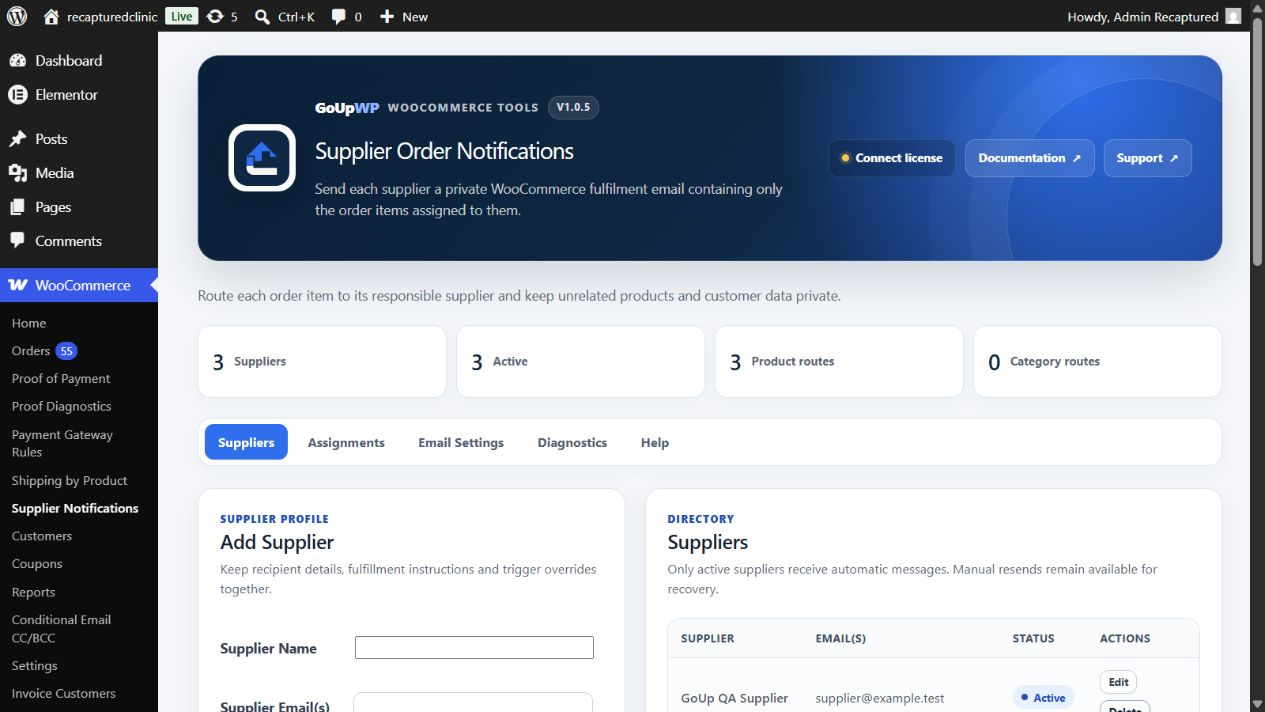
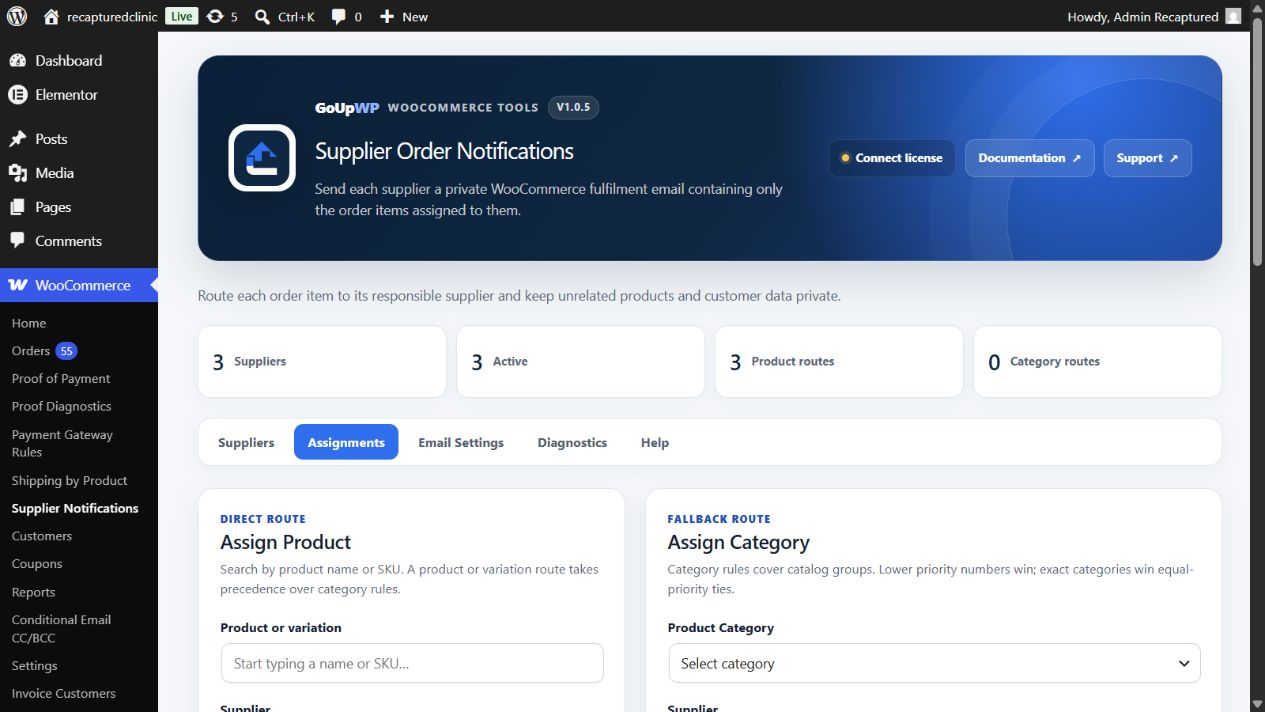
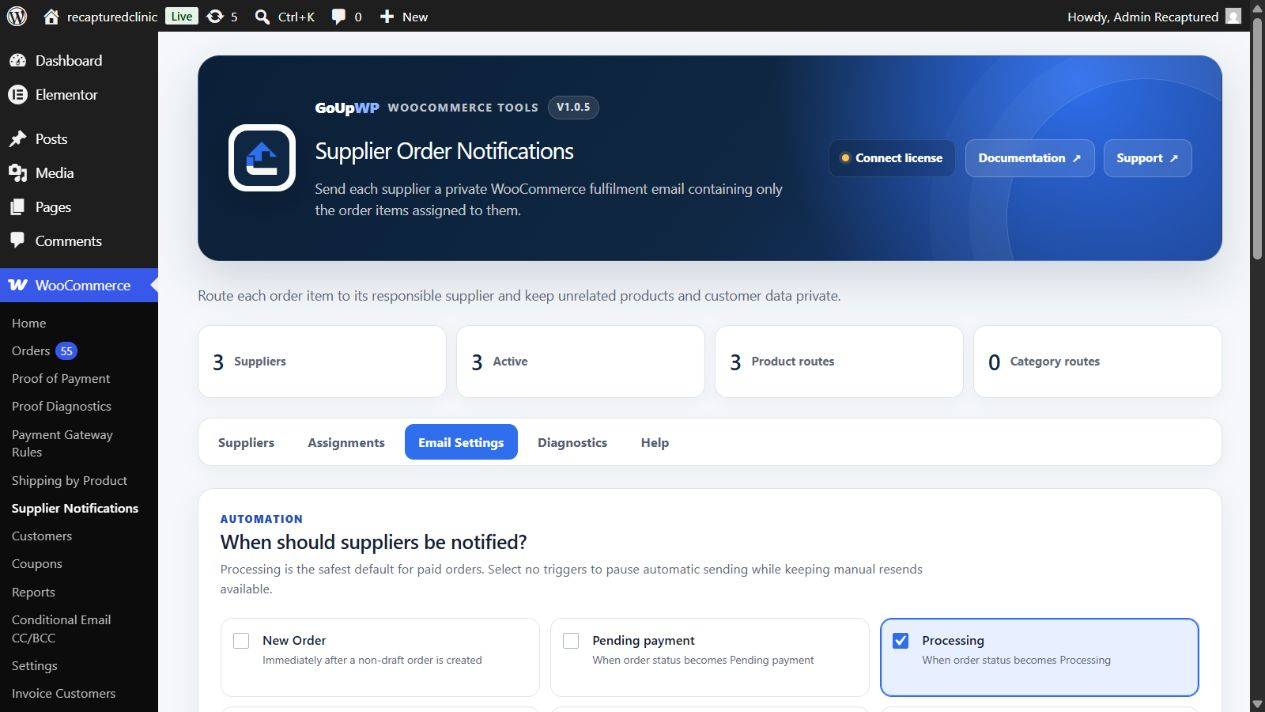
GoUp Supplier Order Notifications is built for exactly this workflow. Setup lives under WooCommerce → Supplier Notifications:
- Suppliers: add a supplier with a name, one or more recipient emails, an optional Reply-To, an active switch, and (optionally) supplier-specific triggers.
- Assignments: assign products, individual variations, or whole categories (with priority and child-category inclusion). Product assignments win over variation-inherited and category assignments; the Diagnostics tab shows the resolved supplier for any product so you can verify before an order arrives.
- Email settings: choose the triggers (order statuses such as processing or completed), decide what the supplier may see (customer name, shipping address, phone, email, billing address, customer note, item meta, prices, order total, payment method — all off by default except what fulfilment needs), set the subject and heading with placeholders
{order_number},{order_date},{site_title},{supplier_name}, add a footer, and choose whether failures email the store admin.
The email is a standard WooCommerce email (WooCommerce → Settings → Emails → Supplier Order Notification), so it uses your header, footer and colours, and can be overridden in the theme at woocommerce/emails/supplier-order-notification.php.
How it behaves: each supplier is notified once per trigger per order; the supplier identity is snapshotted on every order line at checkout, so reassigning a product later never rewrites historical routing; draft orders from the Checkout Block or the admin order screen are ignored until they reach a real status; the order screen shows a per-supplier delivery history (sent, resent, skipped, failed with reason) and a Resend button. Works with the classic checkout, the Checkout Block and HPOS.
Price: $12 per year for one production site plus one staging site, or $49 lifetime. Documentation · Pricing.
Supplier notifications vs the alternatives
| Approach | Supplier sees only their items | Hides prices/customer data | Triggered on paid status | Resend + log |
|---|---|---|---|---|
| Add supplier to New Order recipients | No | No | No (also fires for unpaid On hold orders) | No |
| CC supplier by product (guide) | No | No | Optional by status | No |
| Route email by product, matched items only (guide) | Yes | Partly | Per email type | No |
| GoUp Supplier Order Notifications | Yes | Yes, configurable | Yes | Yes |
| Full dropshipping suite with PDF packing slips | Yes | Varies | Yes | Varies — a larger paid suite |
If you only need a copy of the admin email to reach one warehouse, the routing plugin is enough. If suppliers must never see each other, or you need a delivery log for disputes, use Supplier Order Notifications.
Setup tips from real stores
- Trigger on Processing, not New order. An order reaches Processing when payment is received — or, for bank transfer and cheque, when you confirm the payment and move it out of On hold. Suppliers should never ship an unpaid order.
- Use categories for catalogue-wide suppliers, products for exceptions. Assign "Garden furniture" to the supplier once; override the two SKUs you stock yourself at product level.
- Set a Reply-To. Supplier questions should land with your fulfilment team, not in the WordPress admin inbox.
- Keep prices off. Suppliers only need quantities and SKUs; showing retail prices invites awkward conversations.
- Check Diagnostics after a catalogue import. It shows which supplier each product resolves to, so mis-assignments surface before the first order.
Troubleshooting
No supplier email was sent. Check the order's delivery history: "skipped" usually means no assignment matched, or the trigger status has not been reached yet.
Supplier received the email twice. Two triggers (Processing and Completed) are both enabled and the order passed through both. Keep one, or use supplier-specific triggers.
Supplier email went to spam. Configure an SMTP plugin with a proper sending domain (SPF/DKIM); this affects all WooCommerce emails, not just supplier ones.
Summary
To automatically email suppliers their part of a WooCommerce order, hook a paid status such as Processing, group the order items by supplier, and send each supplier a separate message with only their items and the shipping address. The sketch above does that for a simple catalogue. What turns it into a system you can rely on is everything around it: assignments by category and variation, a template matching your other emails, a delivery log, a resend button, and privacy defaults that keep the customer's phone and email out of supplier inboxes.
Frequently asked questions
How do I send a WooCommerce order to a dropshipping supplier automatically?
Install GoUp Supplier Order Notifications, add the supplier under WooCommerce → Supplier Notifications → Suppliers, assign their products or category, and set the trigger to Processing. When an order is paid and reaches Processing, the supplier receives an email with only their items and the shipping address. No manual forwarding.
Can supplier A see supplier B's products in the email?
No. Each message is rendered from that supplier's filtered line items only, and supplier email addresses are never shared with each other. This is the main reason a plain CC or extra recipient is the wrong tool for dropshipping.
Can I hide prices and the customer's phone number from suppliers?
Yes. Line prices, order total, billing address, customer email, phone and payment method are off by default and can be switched on per store. Most dropshippers only need the shipping address and item list.
What if a supplier email fails to send?
The order screen shows a per-supplier delivery history (sent, resent, skipped, failed with the reason), a Resend button sends again on demand, and you can have failures emailed to the store admin.
Does it work with the Checkout Block and HPOS?
Yes. The supplier is snapshotted on each order line at checkout through WooCommerce CRUD APIs, so it works with HPOS, the Checkout Block and the classic checkout, and later reassignments do not rewrite historical orders.